Static and dynamic addresses
Some network devices request an address through DHCP; others use a documented static address or a fallback address. Manufacturers don’t all use the same approach, so start with the manual for the exact model.
This walkthrough began in February 2020 using Windows 10 and a network camera. The principles also apply to other devices you administer.
Find a device using DHCP
- Connect the device to the intended local network.
- Open the router or DHCP server’s lease list.
- Match the device’s hostname, manufacturer, or MAC address with its label.
- Open its management address using the protocol and port documented by the manufacturer.
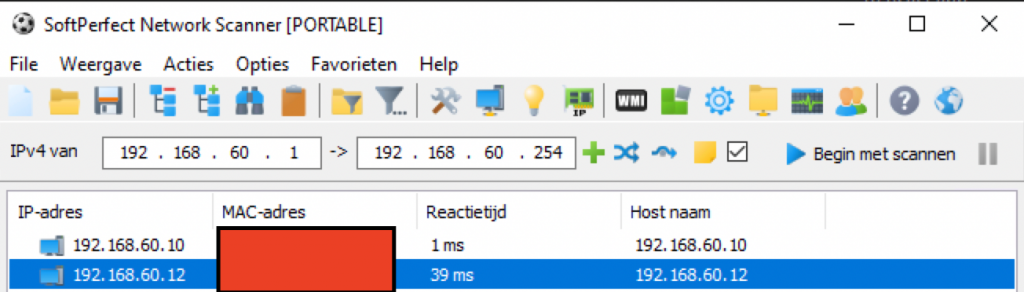
A router is often the DHCP server, but it doesn’t have to be. A vendor discovery tool or authorized local network scan can also help.
Check your computer’s network
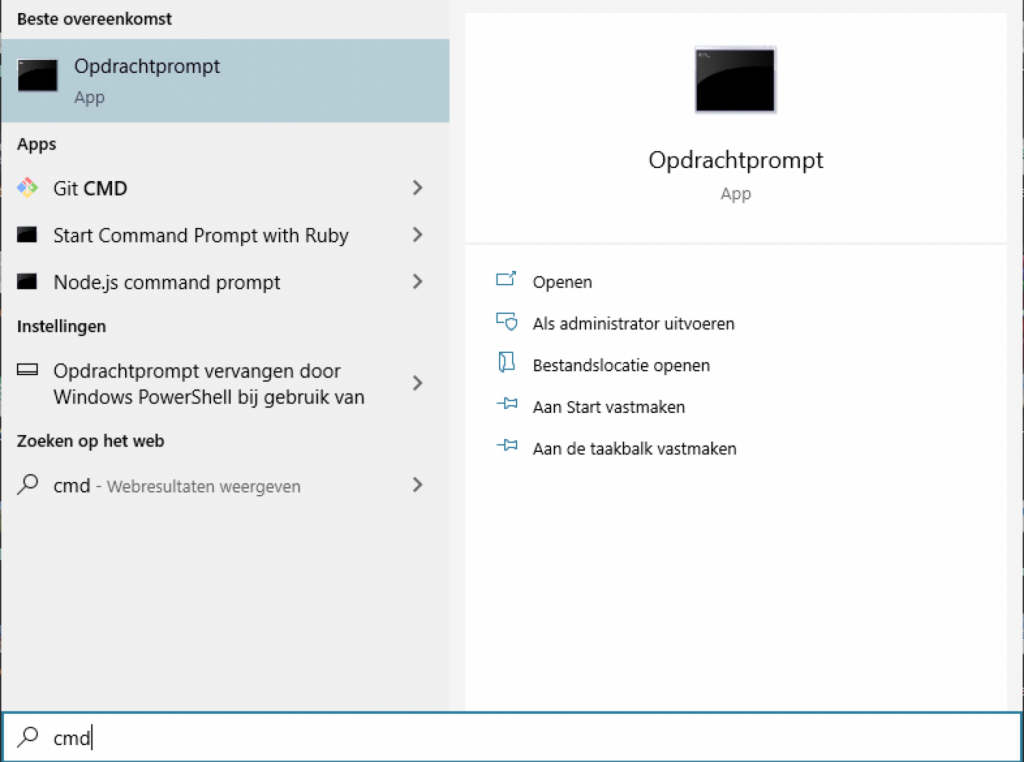
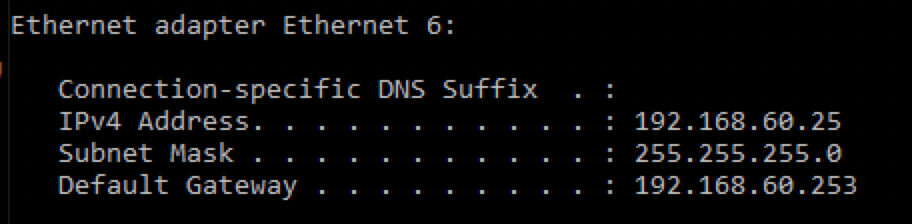
On Windows, open Command Prompt and run ipconfig. Note the active adapter’s address and subnet mask. In my example the computer was 192.168.60.25. The third number alone does not define the subnet; the mask matters.
For a typical 255.255.255.0 mask, the usable host range would be 192.168.60.1 through 192.168.60.254: 254 addresses, not the 253 stated in the original. Scan only networks you own or are authorized to manage. An unresponsive device may still be present.
Reach a device with a known static address
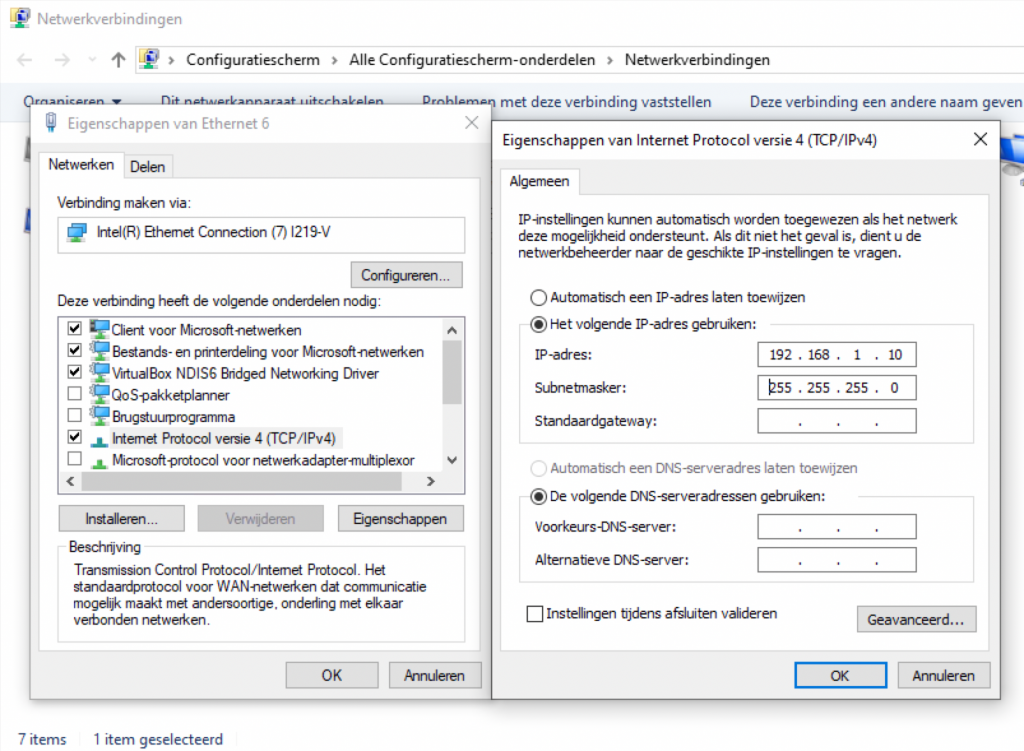
Suppose the manual identifies the camera as 192.168.1.99 with a 255.255.255.0 mask, while your computer is on a different subnet. On an isolated test connection, temporarily give the computer a different unused address in the camera’s subnet, such as 192.168.1.10.
- Record the computer’s original adapter settings.
- Open the Ethernet adapter properties and IPv4 settings.
- Enter the temporary address and correct mask. A gateway isn’t needed just to reach an isolated local camera.
- Connect to the camera and configure its networking as intended.
- Restore the computer’s original settings afterward.
The example address isn’t a universal factory default for all Axis cameras. Avoid factory resets unless you understand the configuration that will be lost.
Keep addresses predictable
A static address needs to be unique and coordinated with the DHCP pool. A DHCP reservation can provide a predictable address while keeping central management. Neither method is inherently better in every network.
If internet access stops after the test, check whether the temporary settings were left in place. Duplicate addresses and an incorrect mask can cause intermittent failures.
Images from the original article