
When your visitor reports stop making sense
Running a blog is more rewarding when you can see where readers come from and which stories they enjoy. But while reviewing my analytics in 2016, I noticed unfamiliar domains appearing in the referral reports.
At first glance, it looked like free traffic. Some of those entries, however, did not represent genuine readers. Automated activity and fabricated analytics hits can distort reports and make a small site’s audience harder to understand.
Historical context: The screenshots and menu steps below come from the older Universal Analytics interface. They are preserved to explain the original approach, not as instructions for navigating today’s Google Analytics interface.
A strange referrer isn’t always a real visit
A suspicious domain in a report doesn’t necessarily mean its owner visited your site or even created a link to it. Some referral spam involves bots visiting pages; other spam can involve analytics data sent without a normal visit.
Don’t classify a domain as spam solely because of its ending, such as .xyz. Review the pattern and the measurement context. Nor does a suspicious entry establish who sent it or justify a legal conclusion about the domain’s owner.
The original approach: include known hostnames
The method in this article was to create a segment that included hits reporting a hostname belonging to the site. A hostname is the site where a hit says it occurred; it isn’t the same thing as the referring website.
Start by identifying your legitimate hostnames, including any deliberately tracked subdomains or other supported measurement locations. A partner linking to you is a referral source, not automatically a hostname to add.
Creating the historical segment
- In the old reporting interface, choose Add Segment beside All Users.
- Create a new custom segment and give it a recognizable name, such as Known Hostnames.
- Under the advanced conditions, choose Hostname as the field.
- Select the regular-expression matching option and enter a pattern for your legitimate hostnames.
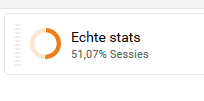
- Save the segment and compare the resulting report with the unsegmented data.
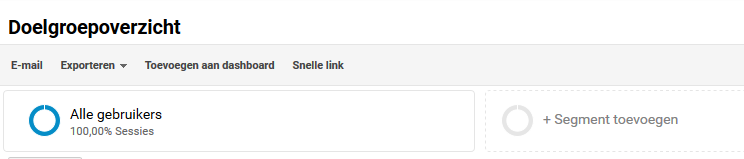
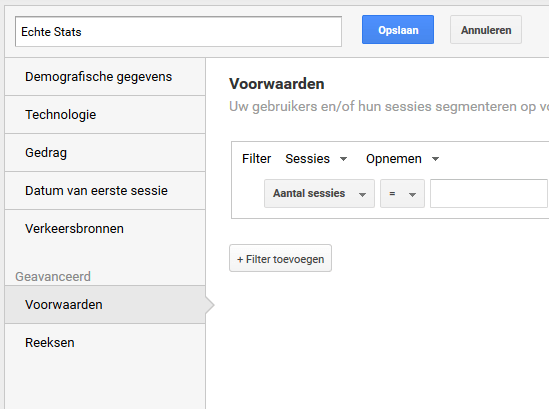
An example for Tech with Taste
For exactly techwithtaste.com and www.techwithtaste.com, an example pattern is:
^(www\.)?techwithtaste\.com$The optional group allows the www prefix. Each escaped period matches a literal dot, and the anchors keep the match to the whole hostname. Adjust the pattern if you intentionally collect data from other hostnames. Google’s regular-expression documentation explains these characters and matching behavior.
What this does and doesn’t solve
A hostname segment changes the subset of data you’re viewing. It doesn’t erase historical spam, block visitors at your server, or prove that every included session came from a person. Spam that reports a valid hostname can still pass the condition.
The original result made my reports easier to interpret. The broader lesson is to understand the field you’re filtering and test your assumptions before treating a cleaner report as definitive evidence.