
More than a way to watch videos
When I wrote this article in July 2017, Chromecast was a simple way to send entertainment to a TV. The examples included streaming from Netflix or YouTube, listening through compatible music apps, and sharing a Chrome tab or desktop.
The original article mentioned a price of about €39. That was a historical reference, not a current price or availability claim.
Casting versus extending your desktop
Showing a browser tab or mirroring a screen is different from adding an independent monitor to Windows. My goal was to keep working on the main display while showing another application on the TV.
The workaround below attempted to create an extra display in Windows and then cast that display. It depended on the Windows version and graphics configuration. Chromecast itself did not create an ordinary second monitor in Windows.
The historical Windows workaround
The original instructions applied to certain Windows 8, 8.1, and 10 setups:
- Right-click the desktop and open the screen-resolution settings.
- Use Detect to look for another display.
- If offered, choose the option to try connecting through VGA and apply the change.
- Press Windows + P and select Extend.
- If an extra display becomes available, select it as the screen to cast.
These older controls aren’t available on every system. If Windows does not offer them, the walkthrough doesn’t establish that your computer can create that extra display.
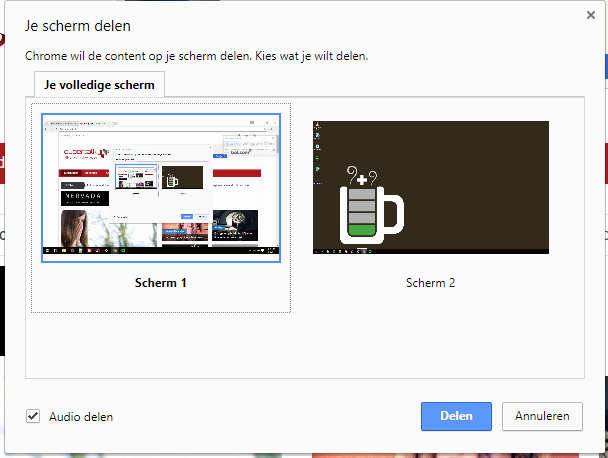
For ordinary casting today
Google’s current casting instructions describe sending a tab or screen from Chrome to a compatible receiver. The computer and receiver need suitable connections to the same Wi-Fi network. Use Chrome’s casting menu to choose the receiver and source.
For a dependable extended desktop, use a display connection your computer supports. Treat the old workaround as an experiment rather than a guaranteed replacement for a monitor.





De optie “Probeer te verbinden met VGA”, heb ik niet.
ThatDutchGuy, Welke versie van windows gebruik je? Ik heb dit getest op Windows 10 pro 64 bit.
Hoor het graag van je.
Ja, super handig natuurlijk. Tot je weer een beamer o.i.d. op je VGA aansluiting aansluit. Dan heb je zeker wel beeld maar windows detecteert dan niet meer wat de beste instellingen zijn voor dat 2e scherm / beamer. Want je hebt deze handmatig geconfigureerd. Tot nu toe was voor mij de enige manier om dit te herstellen om de drivers van de videochip te verwijderen en opnieuw te installeren…. Ik kan dus niet vinden hoe je het handmatig ingevoerde scherm weer verwijderd zodat de automatische detectie weer werkt. Oftewel, weer terug naar de situatie waarin je gewoon één scherm hebt en er automatisch een 2e bij komt als je deze aansluit.
Bedankt voor je reactie Robert, dit ga ik voor je uitzoeken. Ik sluit mijn laptop niet zo vaak aan op beamers etc en programmeer vaak met het 2/e scherm op tv.
Zodra ik iets vind hoor je het van mij.