
Spam doesn’t stop at your inbox
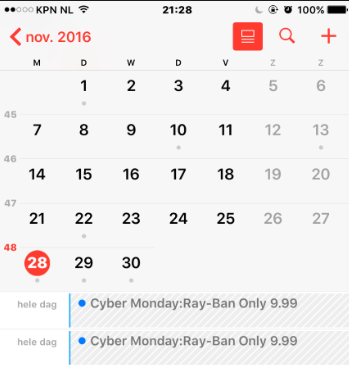
When I first wrote about calendar spam in December 2016, unwanted invitations had started appearing on my own devices. Instead of arriving as ordinary email, the messages showed up as appointments in Calendar.
The screenshot below shows the kind of invitation I was receiving at the time.
Why unwanted events appear
A spammer may send an invitation to an email address associated with your calendar account. Unwanted events can also come from a calendar subscription you didn’t intend to add. An event appearing on your phone doesn’t, by itself, prove that your Apple Account has been compromised.
Don’t open promotional links or call phone numbers in suspicious events. Responding to an invitation may notify its sender, so use the calendar’s junk-reporting options when available.
Remove the event or unwanted calendar
Apple now provides removal and reporting options. According to Apple’s current instructions for iOS 26 and later, you can remove an unwanted event in Calendar or use Report Junk when that option appears.
If the events belong to an unwanted subscription, open Calendar > Calendars, tap its information button, and choose Unsubscribe or Delete Calendar. Confirm your choice. Check the calendar name carefully so you don’t remove one you actually use.
Menu names can differ on older iPhones and iPads. Follow Apple’s instructions for your installed software version.
What about the original 2016 workaround?
The original article described moving unwanted invitations into a separate calendar and then removing that calendar. It was a workaround for the options available at the time, not a promise to stop future spam.
It also described turning off iCloud calendar synchronization for an account I wasn’t using for appointments. That affects synchronization across devices and isn’t necessary simply to remove an unwanted subscription. Before disabling synchronization or deleting any calendar, make sure you understand where your real appointments are stored.
Keep the cleanup focused
Remove the unwanted item using the appropriate calendar controls, report it when possible, and avoid interacting with its contents. If more events appear, check whether an unwanted subscription is still active rather than assuming each event needs to be handled separately.





Ik had dit vandaag helaas. De spammers hadden ervoor gezorgd dat de agenda niet verwijderd kon worden dus heb ik een andere manier gevonden om het virus te verwijderen:
Open Instellingen
Ga naar ‘Wachtwoorden en accounts’
Tik op ‘Agenda’s met abonnement’
Zoek in de lijst naar een vreemde naam of e-mailadres
Open deze en tik op ‘Verwijder account’
en hij is weg!
15 juni in mijn agenda. Goede tip. Bedankt