Give a virtual machine access to a physical disk
It took me a while to work out how to attach a USB hard drive to a Hyper-V virtual machine. Unlike the USB-device menus found in some other virtualization products, this method attaches a supported physical disk as a pass-through drive.
This article was originally published in December 2016. The screenshots show that environment, and the available controls depend on your Windows version and the disk involved.
Host and guest: the difference
The host is the physical computer running Hyper-V. The guest is the virtual machine. If you haven’t created a guest yet, start with my Hyper-V virtual machine guide.
Use a test disk first and back up anything important. The guest will have access to the physical disk, so actions such as formatting it can destroy real data. Verify the disk’s identity by its capacity and device details, not just its drive letter.
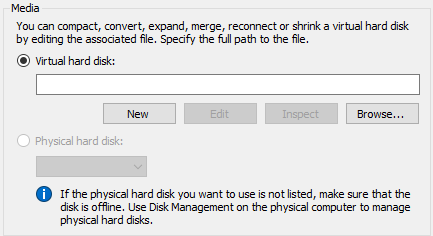
Find the physical-disk setting
- Open Hyper-V Manager and shut down the guest before changing its storage configuration.
- Open the guest’s Settings.
- Select an appropriate storage controller, such as SCSI Controller.
- Choose Hard Drive, then Add.
- Look for the Physical hard disk option.
If the disk isn’t available, it may still be online on the host.
Take the test disk offline on the host
- Press Windows + R, enter
diskmgmt.msc, and open Disk Management with the required administrator permissions. - Locate the USB disk. Confirm that it is the intended test disk and not a system disk or another data disk.
- Close any applications using it.
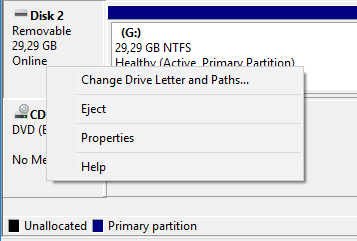
- Right-click the disk’s label in the lower pane and choose Offline, if that option is supported.
Some removable USB devices don’t provide the required offline option. This method is not universal USB pass-through and won’t make every flash drive or USB peripheral usable in a guest.
Assign the disk to the guest
Return to the guest’s hard-drive settings, select the now-offline physical disk, and apply the change. Start the guest and check whether it recognizes the disk. Don’t initialize or format it merely because the guest asks unless you intend to erase it.
The disk stays offline on the host while the guest uses it. Microsoft’s pass-through disk documentation explains that relationship. Before returning the disk to normal host use, shut down the guest and remove its disk assignment.