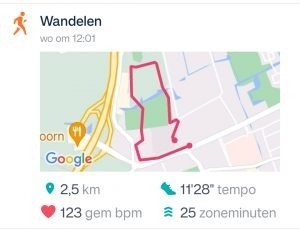
Why doesn’t my workout show a route?
Fitbit Versa 3 and Versa 4 include built-in GPS, but recording a workout doesn’t automatically mean every activity type records a route. The original May 2023 walkthrough focused on enabling GPS for an outdoor run or ride.
Enable GPS before starting
- Open Exercise on the watch.
- Choose a supported outdoor workout, such as running.
- Open that workout’s settings and turn on GPS if needed.
- Go outside with a clear view of the sky and wait for the watch to indicate a GPS connection.
- Start and finish the workout normally, then synchronize the watch with the supported phone app.
Exact controls depend on software version and workout type. Google’s GPS guidance for Fitbit devices explains model-specific behavior.
View the map after synchronization
Open the recorded activity in the app and check its exercise details. If a route wasn’t captured, enabling GPS afterward won’t reconstruct it. Check signal acquisition, the selected exercise, and whether GPS stayed enabled.
The original article mentioned the Fitbit website as well as the app. Don’t assume historical web-dashboard features remain available; use the currently supported application.
Built-in GPS and your phone
Supported built-in GPS recording can work without carrying the phone. Your phone is still useful for synchronization afterward. Battery life, buildings, trees, and signal conditions can affect the recording.
GPS is a positioning service, separate from Starlink internet. The original explanation that positioning simply needs three satellites was incomplete; a typical standalone three-dimensional position and clock solution uses at least four. A workout map is also sensitive location information, so review sharing settings before posting it publicly.
Images from the original article