Move your contacts without retyping them
If you want to move iPhone contacts into another email application or a different phone, a vCard export can help. First check which account stores the contacts: an iPhone can display contacts from iCloud, Google, Exchange, and other sources.
Export the contacts stored in iCloud
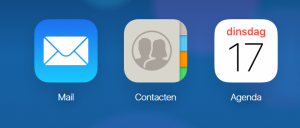
- Sign in to iCloud Contacts using your own account.
- Confirm that the contacts you want appear there. Contacts stored only in another account won’t be included automatically.
- Select the intended contacts, or select all within the contact list.
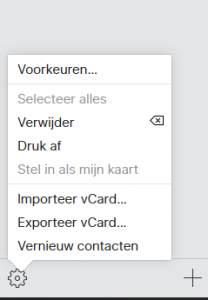
- Use the export control to download a vCard, normally a file ending in
.vcf. - Keep an untouched copy before importing or editing the file.
The original April 2018 screenshots used a gear menu in the lower-left corner. Interface placement can change; look for the export action rather than relying on the screenshot’s location.
Import into Outlook or another application
Use the destination application’s supported contact-import process. Older desktop Outlook versions exposed vCard import under File and Import/Export, but versions differ in how they handle a vCard containing multiple contacts. Don’t assume opening the file imports every person.
After importing, compare the contact count and check names, phone numbers, and email addresses. Watch for duplicates and country-code differences. A vCard is structured contact data, not an ordinary Excel spreadsheet; converting it to a spreadsheet can lose fields.
For current iCloud controls, consult Apple’s iCloud support. Keep the original contacts until you’ve verified the transfer.
Images from the original article