
Give your Wi-Fi name some personality
An emoji can make a wireless network stand out in the list on your phone or laptop. A coffee cup beside a coffee shop’s name, for example, is easier to recognize than an unfamiliar string of letters and numbers.

The benefits and the tradeoffs
An emoji attracts attention, but a long row of symbols can make a network harder to identify. Use them sparingly, and keep readable text in the name so people know which network to choose.
Support varies. Some routers reject these characters, and some devices display empty boxes or garbled text instead of the intended symbol.
Check your router first
In my original 2016 test, I tried a WiFi Pineapple TETRA and a Netgear JNR3210. The Netgear rejected the attempted name with the message:
Character is not allowed in SSID.
That result applies to the device and software I tested. To find out whether your router allows an emoji, check its documentation or try a short test name in its wireless settings.
Change the network name
- Sign in to your router’s administration page or app.
- Open the wireless settings and find the network name, often labeled SSID.
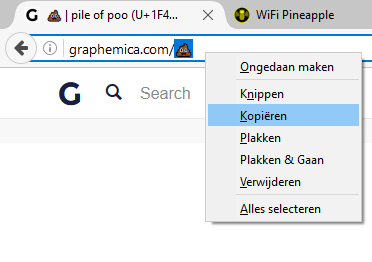
- Copy an emoji from your device’s emoji picker or a character reference such as Graphemica.
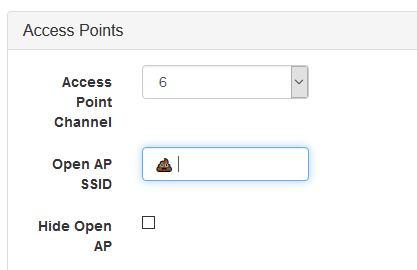
- Paste it into the network name alongside a short, readable name.
- Save the settings, then reconnect your devices using the new name.
Test it on your devices
After saving, check that the name displays correctly and that your usual devices can reconnect. If something stops working, switch back to a simple text name.
In the original experiment, adding more special characters eventually prevented the wireless interface from starting. Keep the name short and remember that a symbol can use more space in its underlying encoding than an ordinary letter.

Need inspiration for the text portion? See my list of funny Wi-Fi names.